Windsurf
Connect Windsurf Cascade to One Horizon through MCP. Cascade can use assigned issues and recent work to answer team questions, generate reports, and help with code. When you finish work, it can summarize the result and add a completed task.
Connect Windsurf
The connection uses the hosted One Horizon MCP server with OAuth.
Open MCP settings
- Open Windsurf.
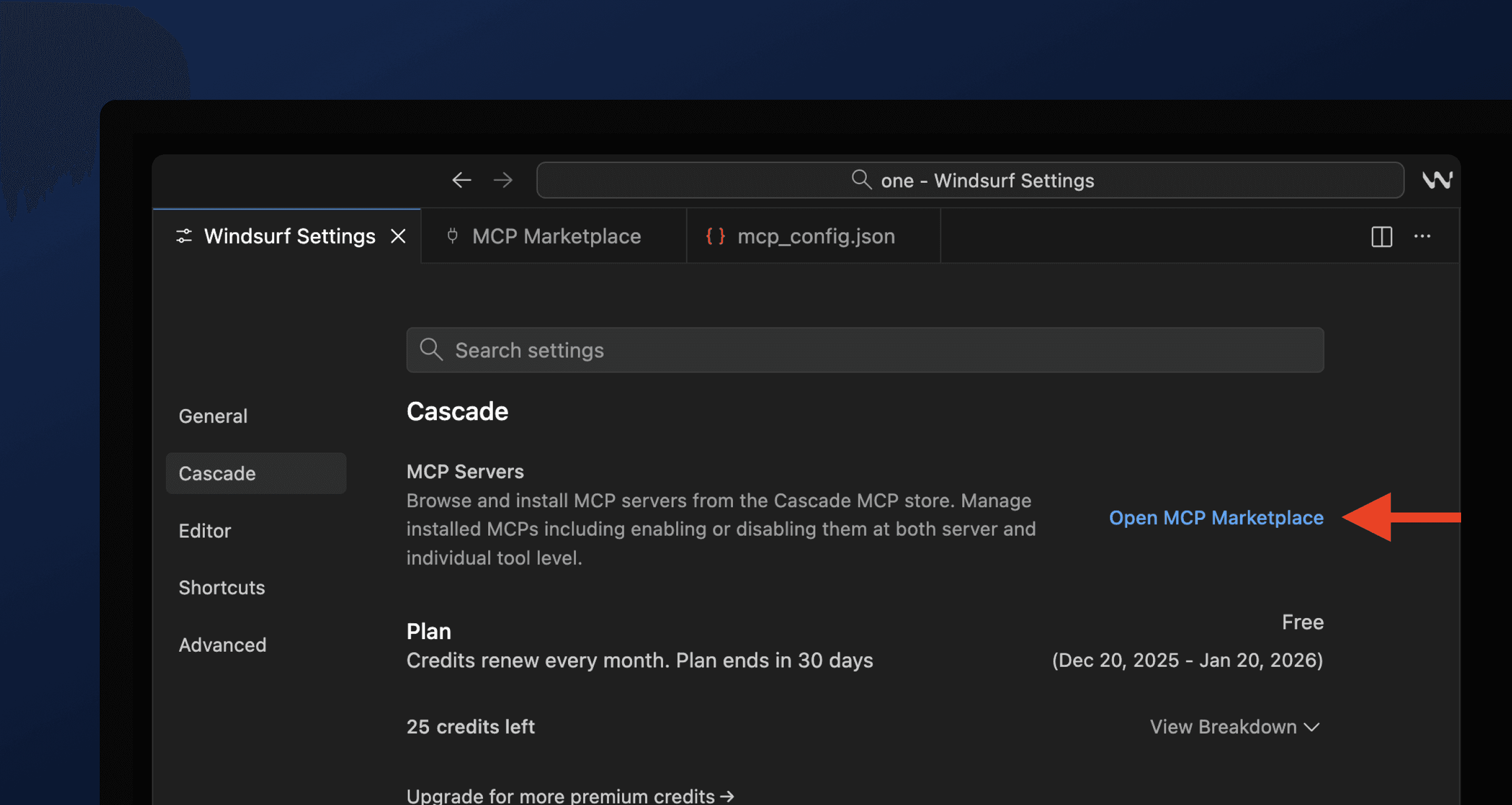
- Go to Settings → Cascade → Open MCP Marketplace.
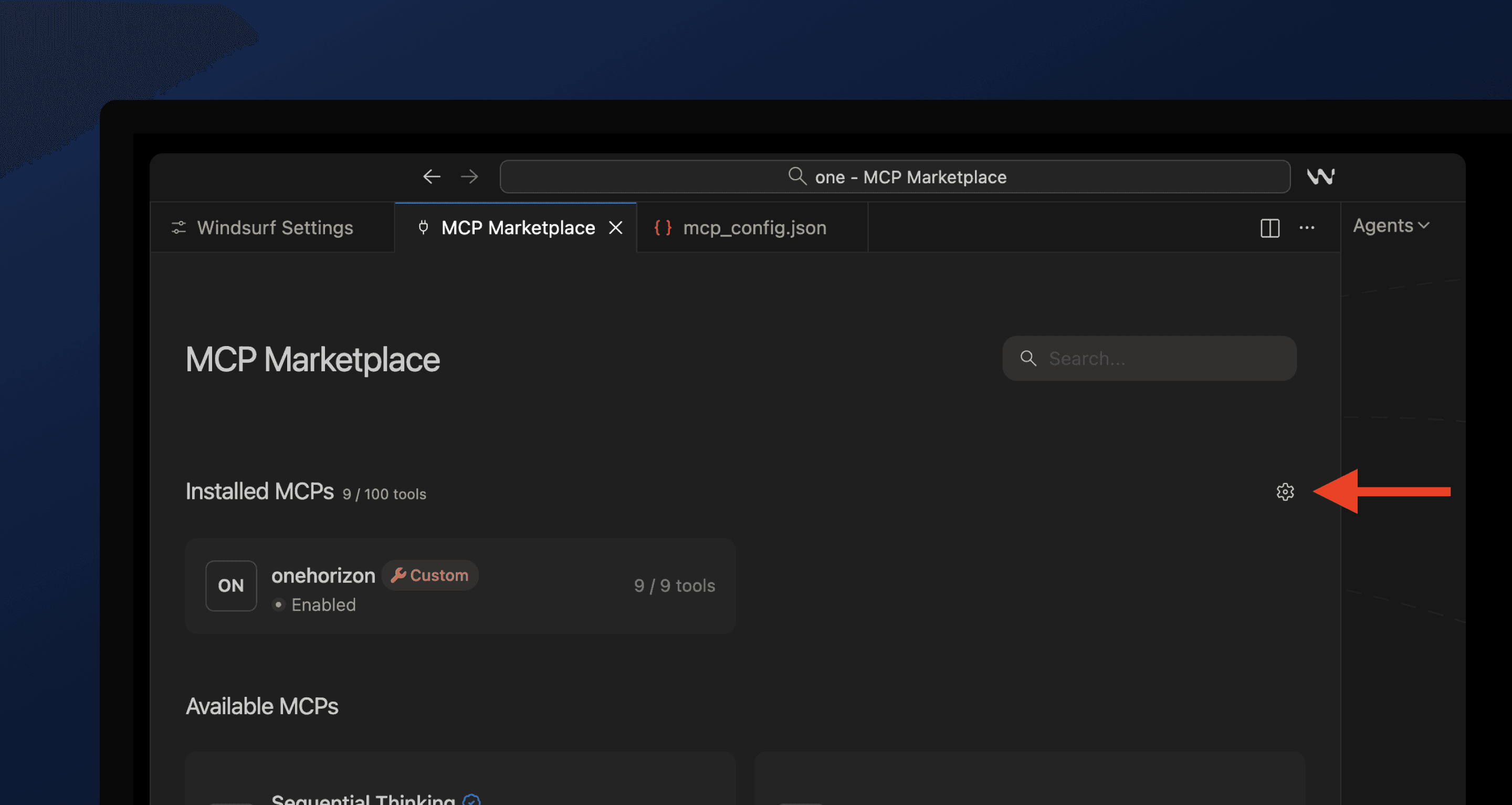
- Next to Installed MCPs, select the gear icon button.
Add the One Horizon server
Add a custom MCP server with the following configuration:
{ "mcpServers": { "onehorizon": { "command": "npx", "args": [ "mcp-remote@latest", "https://mcp.onehorizon.ai/mcp" ] } }}
Copied!Save and open Cascade
Save the server, then open Cascade so Windsurf can start OAuth.
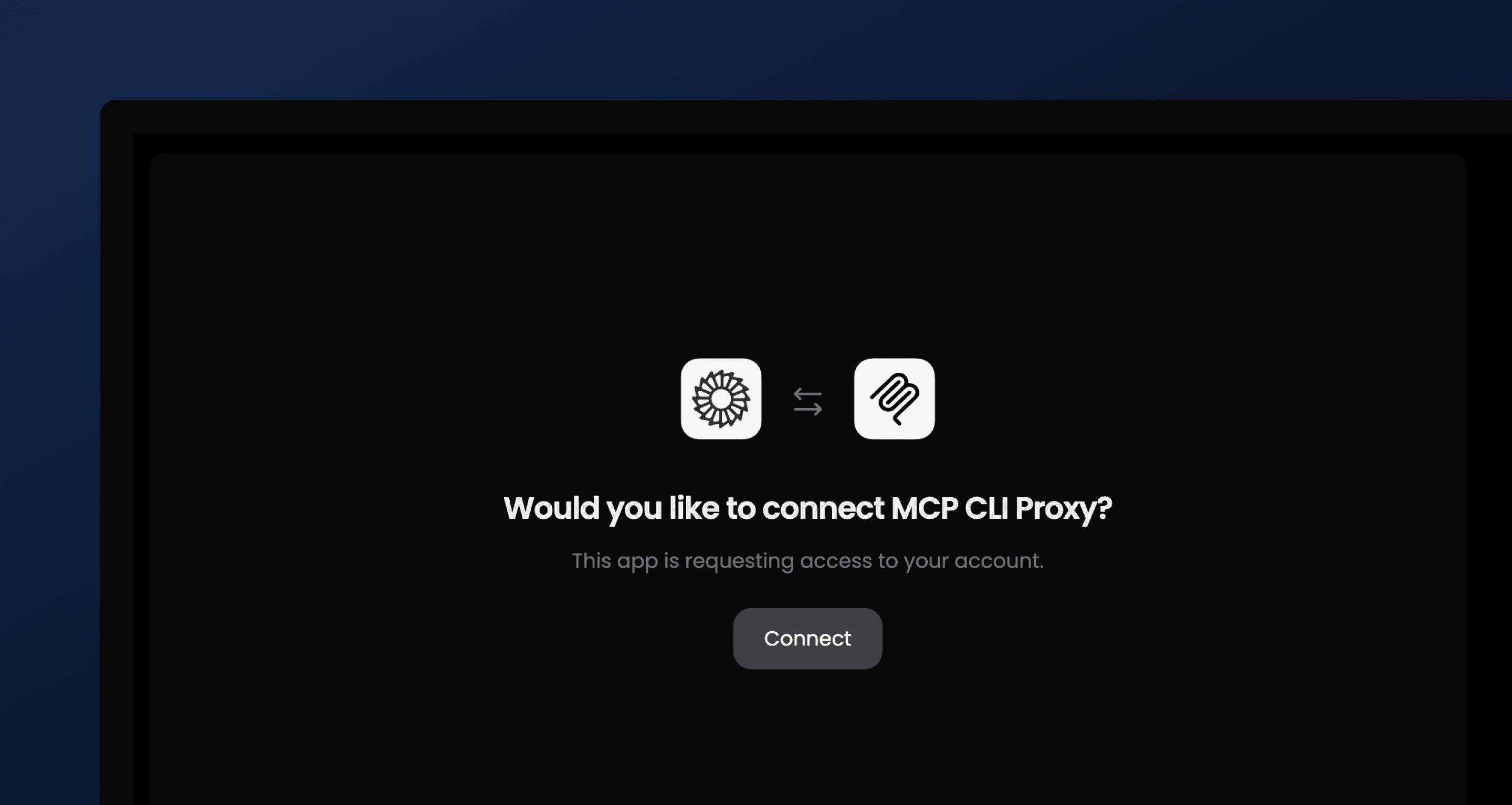
Authorize the connection
After saving, a browser window opens so you can sign in and authorize the connection.
When sign-in succeeds, the server status shows as connected.
Activate in Cascade
Open Cascade with Cmd/Ctrl+L or the Cascade icon. The tools are available after the connection succeeds. The first call may take a moment to load.

What you can ask Cascade
"Show my planned work this week"
Cascade compiles a concise report of your assigned issues and todos from tools like Linear or Jira.
"What's on my plate today"
Cascade pulls your assigned issues and todos so you see today's work in one place.
"Capture this as completed work"
Cascade summarizes the completed work and adds a completed task.
"What did I work on last week"
Cascade summarizes completed items and related PRs or issues from the past week.
Security and permissions
The connector acts on your behalf. Data access follows your roles, workspace membership, and granted scopes.