One Horizon|Docs

Start GuideBetaConcepts
SlackSlackGitHubGitHubJiraJiraLinearLinearGoogle CalendarGoogle CalendarGoogle MeetGoogle MeetClaudeClaudeClaude CodeOpenAIChatGPTCursorWindsurfWindsurfJetBrainsJetBrains IDEsn8nn8n
HomePricingChangelogLog inSign upBlogDocsTerms of UsePrivacy Policy

© 2025 One Horizon. All rights reserved

FacebookInstagramThreadsXRedditDiscordTikTokYouTubeMedium


ChatGPT

Make ChatGPT understand your work in Developer Mode. One Horizon brings assigned issues and recent accomplishments into the chat so ChatGPT can answer team questions, generate reports, surface blockers, and help you plan your work.

Requires ChatGPT Plus or higher with Developer Mode enabled. Learn how to enable Developer Mode.

What is Developer Mode?

Developer Mode is a beta feature in ChatGPT that provides full Model Context Protocol (MCP) client support for all tools, including write actions. This means ChatGPT can now interact with your One Horizon data just like Claude or Cursor.

Connecting

Step 1: Enable Developer Mode

  1. Open ChatGPT Settings in your browser.
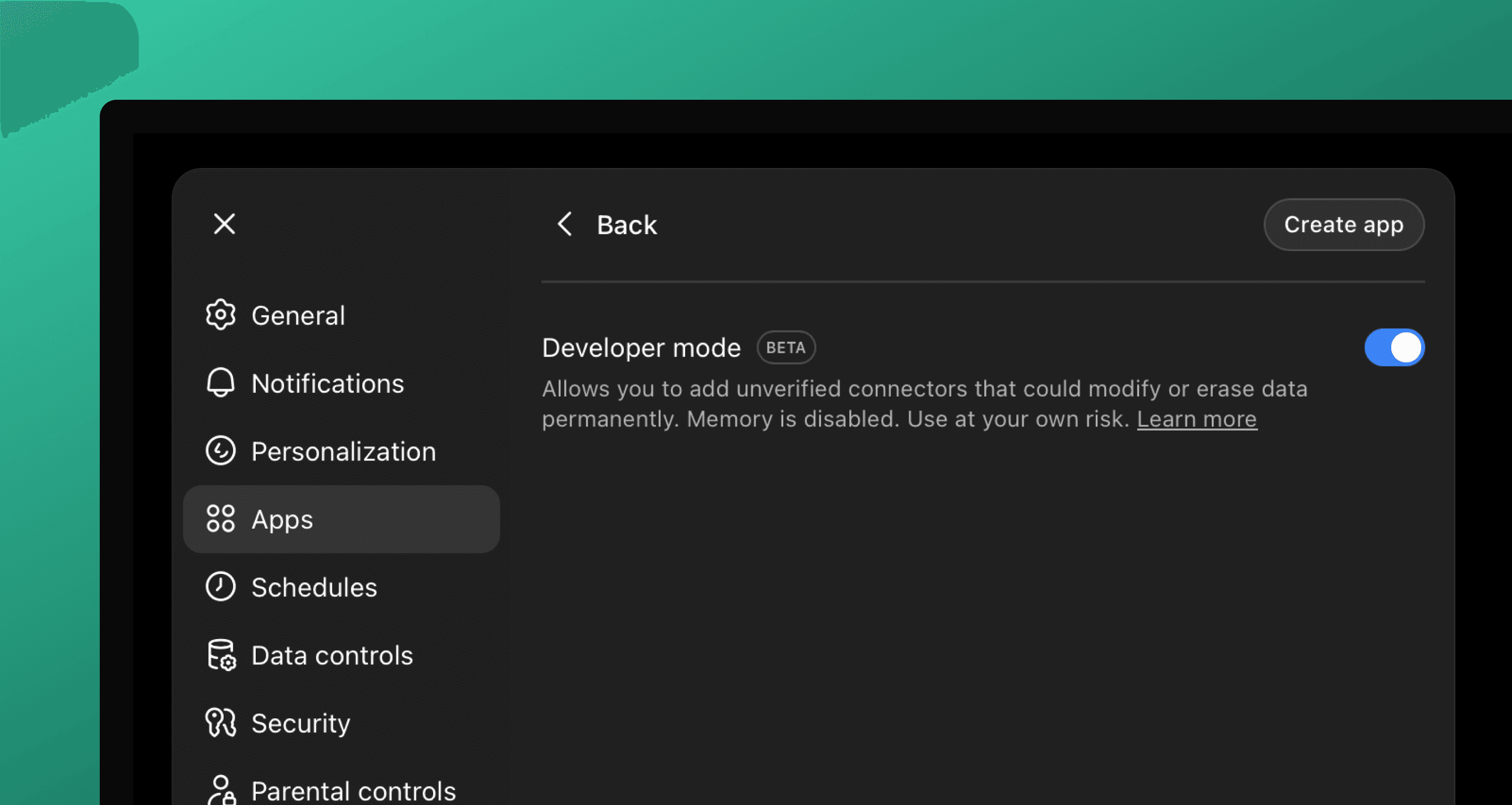
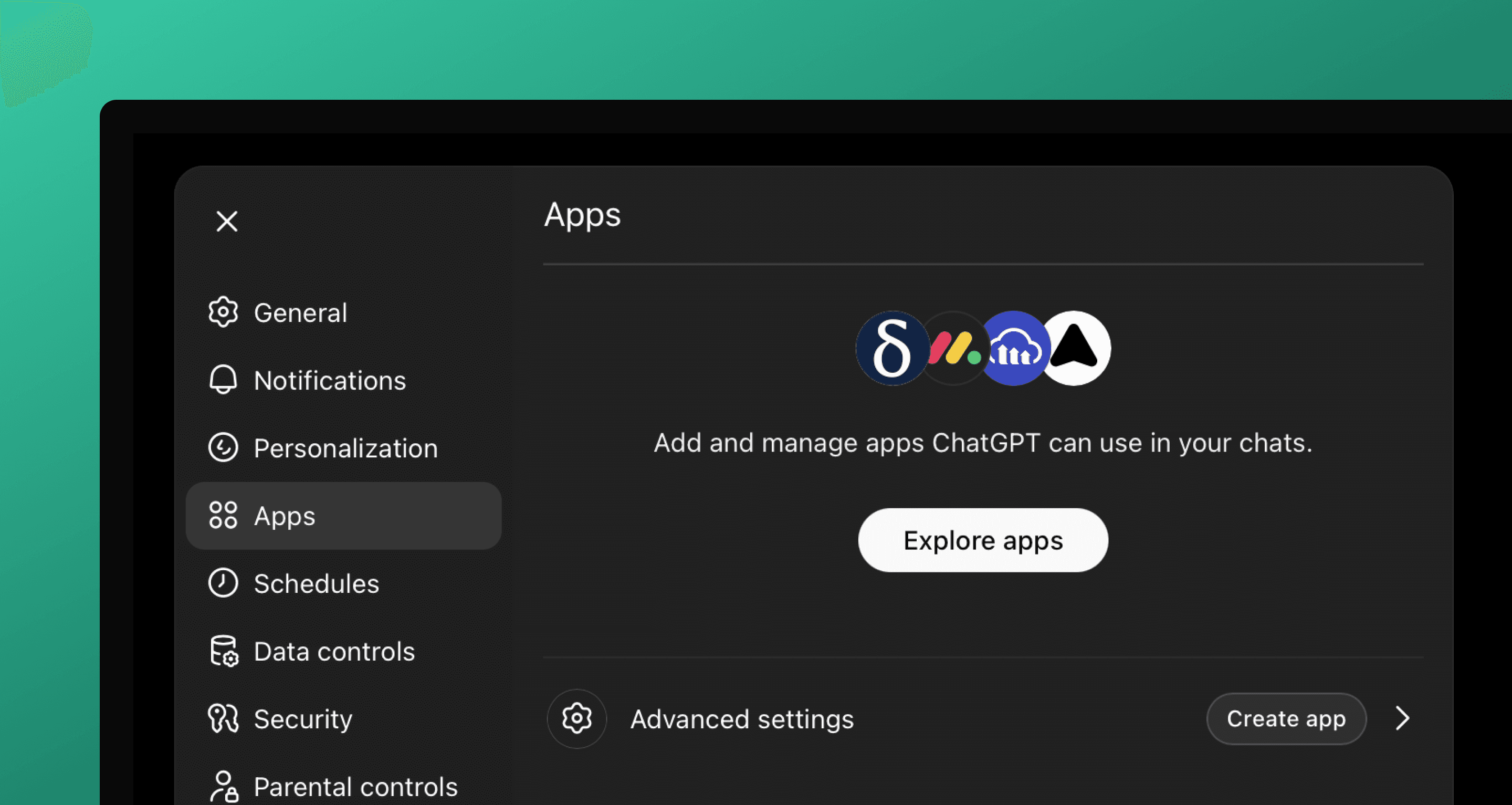
  2. Navigate to Apps → Advanced Settings
  3. Toggle Developer Mode on

Enabling Developer Mode is currently only possible in the browser version of ChatGPT, not in the mobile or desktop apps.

ChatGPT developer mode

Step 2: Add One Horizon App

  1. In ChatGPT Settings, go to Apps
  2. Click Create App
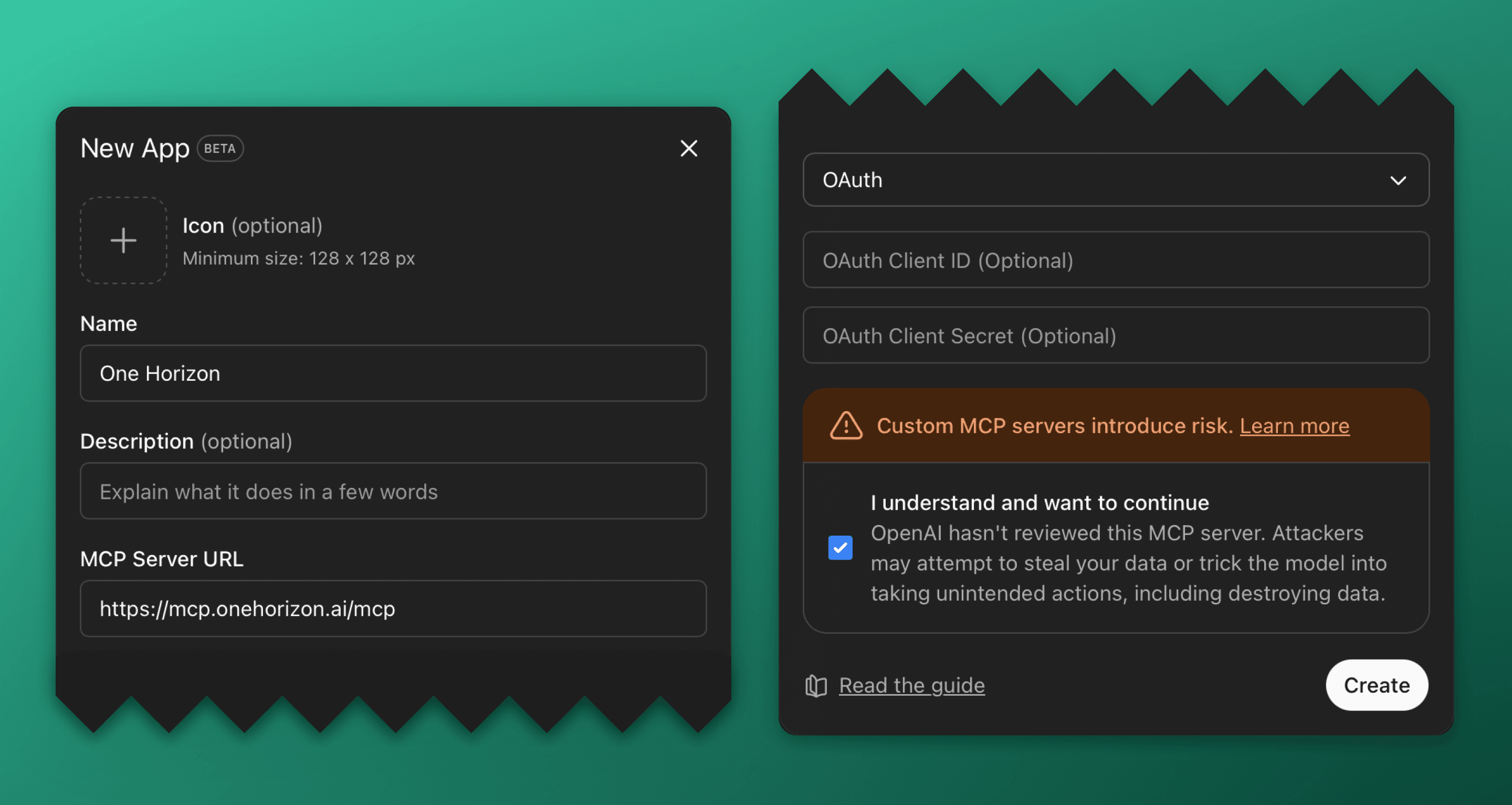
  3. Enter the configuration:

Name: One Horizon

MCP Endpoint:

https://mcp.onehorizon.ai/mcp
Copied!

Authentication: OAuth (automatic). No need to enter any client ID or secret.

ChatGPT apps ChatGPT new app

Step 3: Authenticate

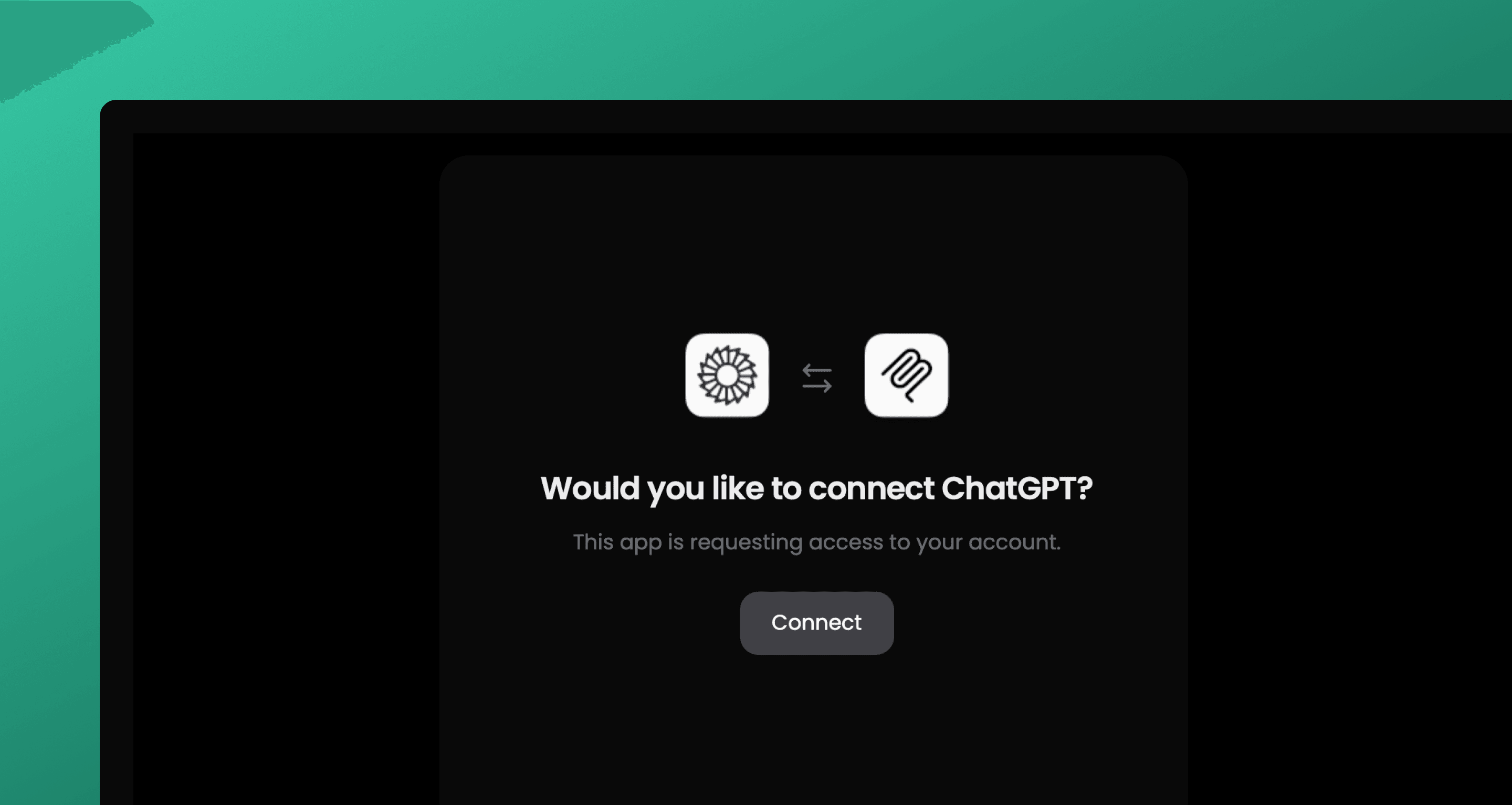
When you first use One Horizon tools in a chat, ChatGPT will prompt you to authenticate. A browser window will open asking you to log in and authorize the connection.

Connect ChatGPT to One Horizon

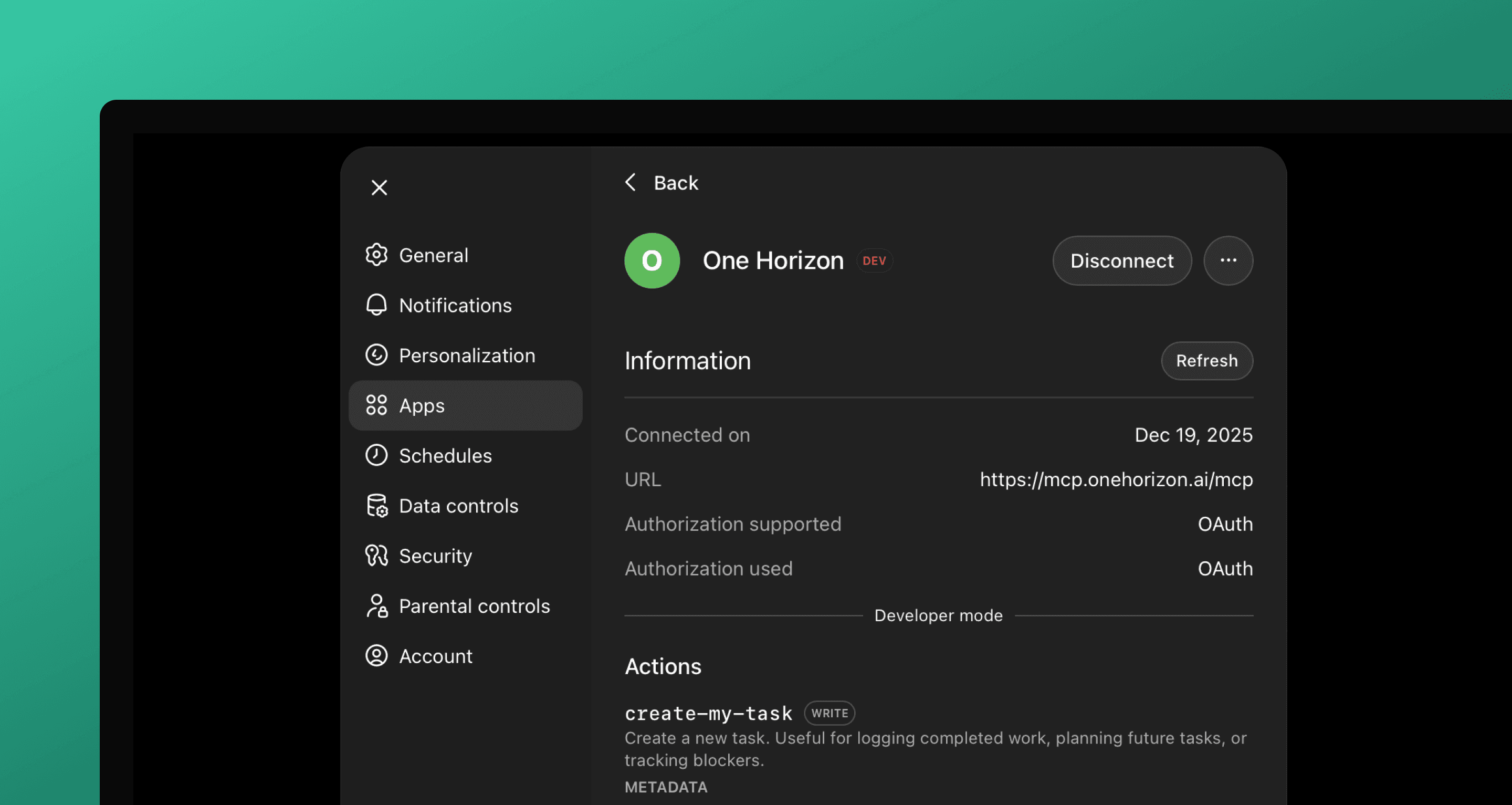
Once authenticated, you can see an overview of the app, such as the actions it can perform.

ChatGPT app settings

Developer Mode Limitations:

  • Only works in regular chats, not Project chats
  • Does not work in Deep Research mode
  • First tool call may take longer to load

What you can ask ChatGPT

"Show my planned work for this week"

ChatGPT pulls your assigned issues and tasks from tools like Jira, Linear, and Google Calendar.

"Give me a team recap for last week"

ChatGPT compiles what each team member shipped and what's still open.

"What's blocking the frontend team"

ChatGPT lists current blockers and related context.

"Log this work to my Done List"

ChatGPT summarizes your completed work and creates a task entry.

Tool calling in ChatGPT Using One Horizon in ChatGPT

Known Issues

Based on community feedback, be aware of these quirks:

  • Tool Reliability: Some users report HTTP 424 errors or tools not being found intermittently
  • Large Tool Sets: If you have many other MCP connectors (70+ total tools), ChatGPT may struggle
  • File Handling: Returned files may not display correctly
  • New Chat Required: Tools may appear greyed out in existing chats; start a fresh chat to use them

These are ChatGPT limitations, not issues with the One Horizon MCP server.

Security and permissions

The connector acts on your behalf. Data access follows your One Horizon roles, workspace membership, and scopes.

Troubleshooting

Tools Not Appearing

  • Check you're not on a free plan
  • Ensure Developer Mode is enabled
  • Start a new chat (tools don't activate in existing chats)
  • Verify you're not in a Project chat

Authentication Errors

  • Check browser pop-up blocker settings
  • Try revoking and reconnecting in Settings → Developer Mode → Custom Connectors
  • Verify you're logged into One Horizon in your default browser

Tools Failing After Connecting

  • Start a fresh chat
  • Be explicit: "use One Horizon to show my tasks"
  • Check if you have too many other MCP connectors enabled

Related Articles

Claude

Claude

Make Claude use all the tools to report, summarize, and plan your or your team’s work.

Claude Code

Make Claude Code understand and capture your work while you code.

Cursor

Make Cursor understand and capture your work while you code.

JetBrains

JetBrains IDEs

Make JetBrains IDEs understand and capture your work while you code.

  • What is Developer Mode?
  • Connecting
  • What you can ask ChatGPT
  • Known Issues
  • Security and permissions
  • Troubleshooting
  • Back to top